Set up your Proton Pass SSH agent
- Reading
- 2 mins
- Categories
- Proton Pass
- Using Proton Pass
- Proton Pass for Business
Proton Pass allows you to store your SSH private keys encrypted in your vaults instead of as plaintext-on-disk files protected only by a passphrase. This enables the SSH agent protocol, so tools like Git or SSH can access the password manager the same way they’d talk to a normal agent.
When you unlock your vault (e.g. using biometrics) this unlocks access to the SSH keys for signing — centralizing key storage alongside your other credentials, with the vault’s encryption and access controls protecting the key instead of a separate passphrase-protected file.
You can use the SSH agent to:
- Authenticate with Git
- Sign Git commits
- Forward SSH authentication to remote servers
The Proton Pass SSH agent is available for all paid Proton Pass plans with the exception of Proton Pass Essentials. It can accessed through the Proton Pass desktop app.
Note: You’ll need to store an SSH key in Proton Pass in order to start using the SSH agent. On Proton Pass Android and iOS apps, you can create a new SSH key and store it. On the Proton Pass desktop app and web app, you can store an existing SSH key.
Create an SSH key on Android or iOS
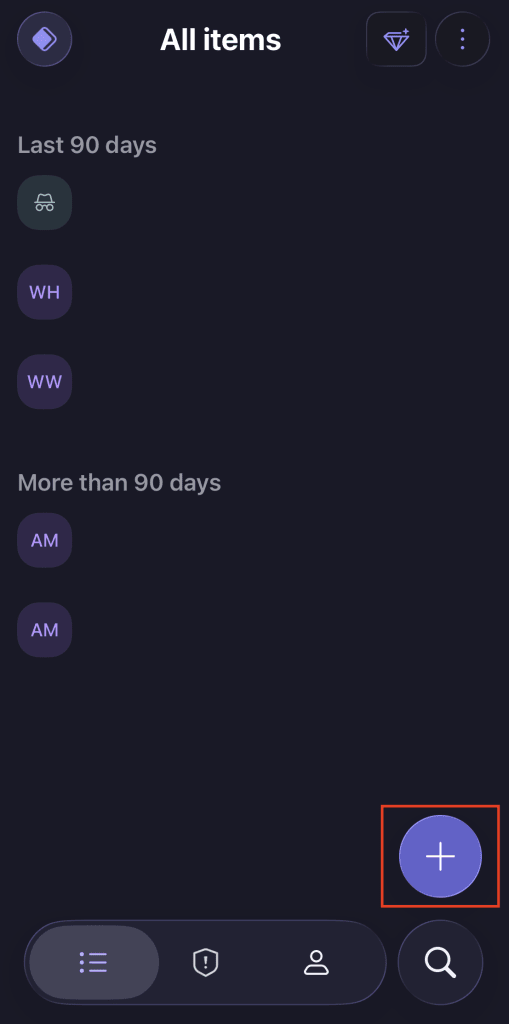
- On Proton Pass Android and iOS apps, you can generate an original SSH key in order to enable your SSH agent. To create an SSH key, select the + icon
2. Select Other

3. Select SSH Key

4. Enter the name for your SSH key then select the Public key field → Generate SSH key

5. Choose the type of key you want to generate

6. Enter the host and any additional fields → Select Create

Create an SSH key on desktop or web
- On the Proton Pass web and desktop apps, you can store an existing SSH key in order to enable your SSH agent. To add an SSH key, select + Create item → Other

2. Select SSH key

3. Choose the name for your SSH key, enter the public and private keys, your username, and the host domain → Select Create

Enable Proton Pass SSH agent
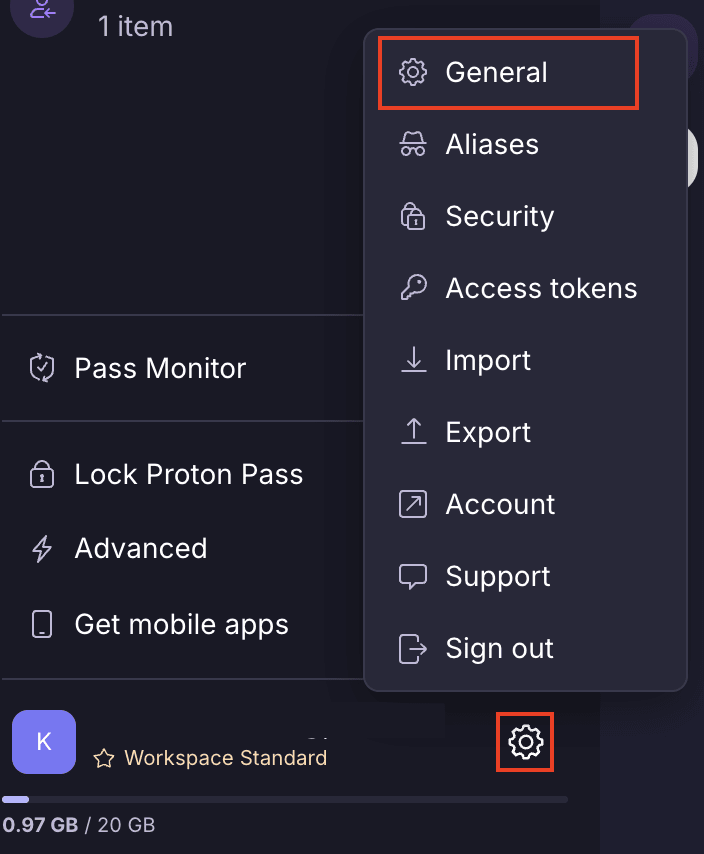
- Select the Settings ⚙ icon → General
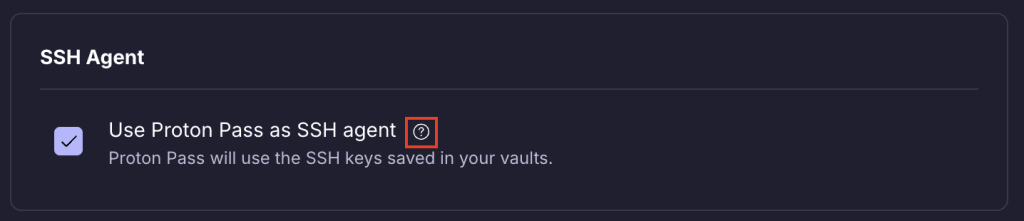
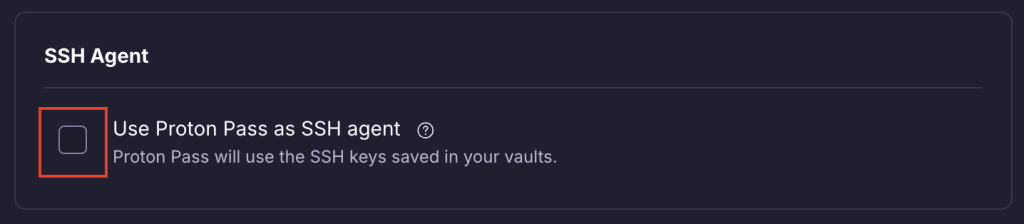
2. In the SSH Agent section, tick the Use Proton Pass as SSH agent box to generate a setup command that you can then paste into your terminal. If you’re using a macOS or Linux device then once you’ve copied the command, select Done. If you’re using a Windows device, you’ll have to take additional steps which are listed.
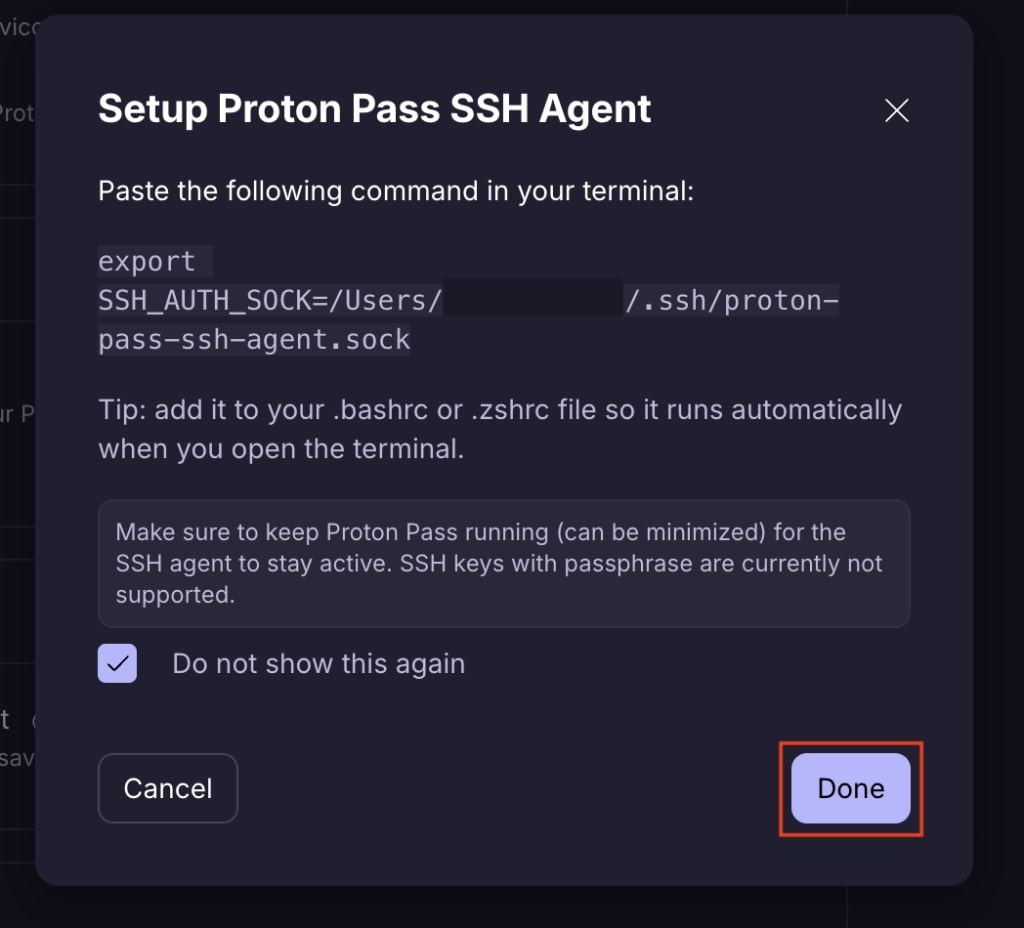

3. If you need to use the command again, you can find it by selecting the ? icon